> For the complete documentation index, see [llms.txt](https://banner-docs.tech-arms.io/llms.txt). Markdown versions of documentation pages are available by appending `.md` to page URLs; this page is available as [Markdown](https://banner-docs.tech-arms.io/getting-started/how-to-create-a-banner/free-shipping-banner.md).

# Free shipping banner

## **What is a Free Shipping Banner?**

A **Free Shipping Banner** is a smart promotional banner that motivates customers to **add more items to their cart** in order to **unlock free shipping**. It automatically tracks the customer’s cart value and updates the message in real time — making the shopping experience more engaging and boosting your sales.

<figure><img src="https://1289081335-files.gitbook.io/~/files/v0/b/gitbook-x-prod.appspot.com/o/spaces%2FAmqp7RxqJNuSEGCBn5Og%2Fuploads%2Fgit-blob-6f8f1cb8a7bebdf469eed1e9fd60e3f271791636%2Fimage%20(145).png?alt=media" alt=""><figcaption><p>Start message</p></figcaption></figure>

#### **How it works?**

The banner automatically:

* **Detects the customer’s cart value**.

<figure><img src="https://1289081335-files.gitbook.io/~/files/v0/b/gitbook-x-prod.appspot.com/o/spaces%2FAmqp7RxqJNuSEGCBn5Og%2Fuploads%2Fgit-blob-630d5fc58c436406dd2f4ee1d1ea08136a855514%2Fimage%20(173).png?alt=media" alt=""><figcaption></figcaption></figure>

* **Calculates how much more is needed** to reach the free shipping threshold.

<figure><img src="https://1289081335-files.gitbook.io/~/files/v0/b/gitbook-x-prod.appspot.com/o/spaces%2FAmqp7RxqJNuSEGCBn5Og%2Fuploads%2Fgit-blob-da61a72aeae3ef5556dc27bc796d02be3bafee43%2Fimage%20(152).png?alt=media" alt=""><figcaption><p>Progress message</p></figcaption></figure>

* **Displays a dynamic message**, such as:
  * “Add $12.00 more to get FREE shipping!”
  * Once the goal is reached: “🎉 You’ve unlocked FREE shipping!”

<figure><img src="https://1289081335-files.gitbook.io/~/files/v0/b/gitbook-x-prod.appspot.com/o/spaces%2FAmqp7RxqJNuSEGCBn5Og%2Fuploads%2Fgit-blob-2ac406104922f706d4f934888c9a5afde13cb242%2Fimage%20(157).png?alt=media" alt=""><figcaption><p>Success message</p></figcaption></figure>

This message updates in real time as customers add/remove items from their cart.

#### **Key Benefits:**

✔ Encourages higher spending by displaying the amount needed for free shipping.\
✔ Improves user experience with real-time updates.\
✔ Fully customizable design to match your store’s branding.

***

To get started:\
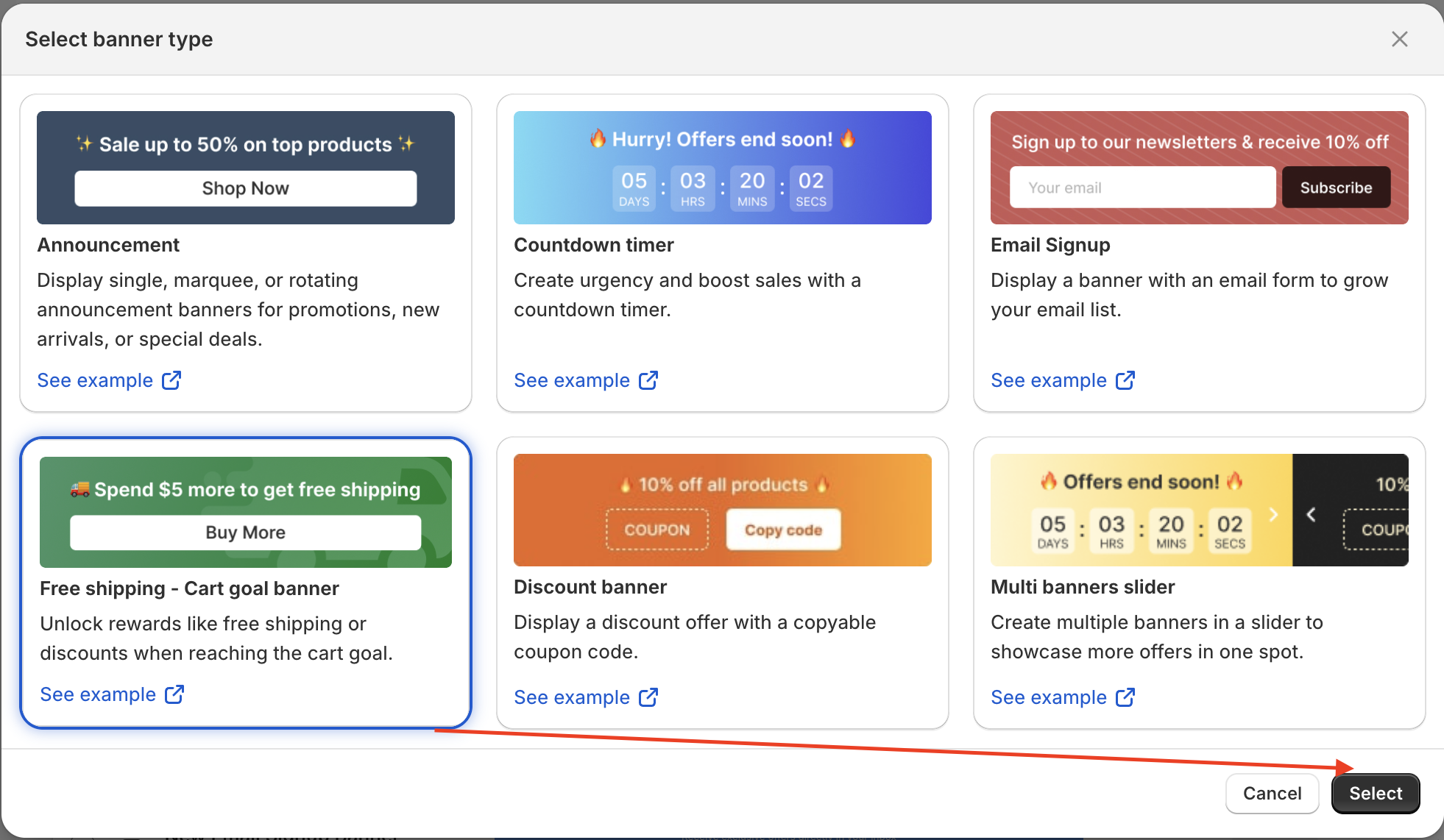
**Go to** `Create Banner` → **Select** `Free shipping - Cart goal banner`.

<figure><img src="https://1289081335-files.gitbook.io/~/files/v0/b/gitbook-x-prod.appspot.com/o/spaces%2FAmqp7RxqJNuSEGCBn5Og%2Fuploads%2Fgit-blob-9baad99f396e79c11348d9b2153ee044821cd4ba%2FScreenshot%202026-06-04%20at%2010.22.18.png?alt=media" alt=""><figcaption></figcaption></figure>

***

> 👉 **First time creating a banner?**\
> Follow this quick [step-by-step guide](/getting-started/how-to-create-a-banner.md) to learn how to create and publish your first banner.

***

## **1. Define Free Shipping Value**

<figure><img src="https://1289081335-files.gitbook.io/~/files/v0/b/gitbook-x-prod.appspot.com/o/spaces%2FAmqp7RxqJNuSEGCBn5Og%2Fuploads%2Fgit-blob-8a04bc125c372a9d2b2fea9c7185d19dd75f1c1e%2Fimage%20(351).png?alt=media" alt=""><figcaption></figcaption></figure>

📌 **What does this setting do?**\
The **Free Shipping Value** determines the minimum order amount displayed on the banner to inform customers how much they need to spend to qualify for free shipping.

💡 **Important Note:**\
The app **only displays** the free shipping threshold on the banner—it does **not** control whether customers actually receive free shipping at checkout. Free shipping eligibility is determined by the **shipping rules set in your Shopify Admin**.

🔹 **How to ensure free shipping works correctly?**\
Before setting up the banner, you must first configure free shipping in **Shopify Admin > Shipping and Delivery**. Once that’s done, enter the **same** free shipping amount into the **Free Shipping Value** field in the app.

This ensures:\
✅ The banner accurately reflects your store’s free shipping rules.\
✅ Customers receive free shipping as expected when they reach the required amount.

💡 **What should I enter here?**

* If your store offers free shipping for orders over **$500**, enter **500** in this field.
* This amount will automatically convert to the customer’s currency based on Shopify’s exchange rate.
* If you’re unsure, check your **Shopify Admin > Shipping and Delivery** settings to confirm the free shipping threshold.

***

If you haven't set up free shipping in Shopify yet, please follow this guide:

<details>

<summary>How do I set up free shipping in Shopify?</summary>

1. Go to **Shopify Admin > Settings > Shipping and Delivery**.

   <figure><img src="https://1289081335-files.gitbook.io/~/files/v0/b/gitbook-x-prod.appspot.com/o/spaces%2FAmqp7RxqJNuSEGCBn5Og%2Fuploads%2Fgit-blob-6fff5c2c1c6aa28f39699131cb15e28f6b1bff9f%2Fimage%20(283).png?alt=media" alt=""><figcaption></figcaption></figure>
2. Click **Manage** on the shipping profile where you want to add free shipping.
3. Scroll down to **Fulfillment Location** and click **Add Rate**.

   <figure><img src="https://1289081335-files.gitbook.io/~/files/v0/b/gitbook-x-prod.appspot.com/o/spaces%2FAmqp7RxqJNuSEGCBn5Og%2Fuploads%2Fgit-blob-e7d4d8b682b70a5ea4f56b57076db65fe0cddd04%2Fimage%20(284).png?alt=media" alt=""><figcaption></figcaption></figure>
4. Click **Add Conditions**, select **Based on order price**, then:
   * Set **Price = 0** (for free shipping).
   * Enter the **Minimum Order Price** required to qualify for free shipping.\\

     <figure><img src="https://1289081335-files.gitbook.io/~/files/v0/b/gitbook-x-prod.appspot.com/o/spaces%2FAmqp7RxqJNuSEGCBn5Og%2Fuploads%2Fgit-blob-5e3dfbdb85919b426fa97d05a9443ef8324ffaa9%2Fimage%20(285).png?alt=media" alt=""><figcaption></figcaption></figure>
5. Click **Done** and **Save** your settings.

🔗 *For more details, you can refer to the* [*Shopify guide*](https://help.shopify.com/en/manual/shipping/setting-up-and-managing-your-shipping/setting-up-shipping-rates#free-shipping-over-a-certain-value)*.*

</details>

<details>

<summary>Set Free Shipping Goals by Country?</summary>

📌 **What is this?**\
Allows you to set different free shipping thresholds for each country.

💡 **When to use?**\
Use this if shipping costs vary by country (e.g., Algeria requires a higher order total than the US).

📌 **How to set it up?**

1. Click **Add Free Shipping Goal**.
2. Select the **market**.
3. Enter the **free shipping value** for that market.

For example, if you offer free shipping for orders of $400 or more in Algeria, you can set it up by selecting **Add Free Shipping Goal** > choose **Algeria** > enter **400** as the free shipping value.

**Note:** The value you enter will always be in your store’s default currency. On the storefront, it will automatically convert to the customer’s local currency based on Shopify’s exchange rate.

<figure><img src="https://1289081335-files.gitbook.io/~/files/v0/b/gitbook-x-prod.appspot.com/o/spaces%2FAmqp7RxqJNuSEGCBn5Og%2Fuploads%2Fgit-blob-51d47f2c48299f5b487c53b17b948f887112b31b%2Fimage%20(136).png?alt=media" alt=""><figcaption><p>Rate in Shopify admin</p></figcaption></figure>

<figure><img src="https://1289081335-files.gitbook.io/~/files/v0/b/gitbook-x-prod.appspot.com/o/spaces%2FAmqp7RxqJNuSEGCBn5Og%2Fuploads%2Fgit-blob-bfe53c14fd0513f1fdec993b24191a48a935872a%2Fimage%20(350).png?alt=media" alt=""><figcaption></figcaption></figure>

<figure><img src="https://1289081335-files.gitbook.io/~/files/v0/b/gitbook-x-prod.appspot.com/o/spaces%2FAmqp7RxqJNuSEGCBn5Og%2Fuploads%2Fgit-blob-912d199be1fbd8708c152a1251e5b4322c9582b9%2Fimage%20(137).png?alt=media" alt=""><figcaption><p>How the currency is converted on storefront</p></figcaption></figure>

This ensures accurate free shipping requirements based on the customer’s location.

</details>

***

## **2. Customize Banner Content**

📌 **Define what customers see at different stages of their shopping journey**

<figure><img src="https://1289081335-files.gitbook.io/~/files/v0/b/gitbook-x-prod.appspot.com/o/spaces%2FAmqp7RxqJNuSEGCBn5Og%2Fuploads%2Fgit-blob-e79fa3fbea8a5ac639fccc3444166c076be2d202%2Fimage%20(164).png?alt=media" alt=""><figcaption></figcaption></figure>

**Messages & Examples:**

* **Start Message** (*When no items are added to the cart*):
  * *"Get free shipping on orders over $50!"*
* **Progress Message** (*When the cart total is below the free shipping goal*):
  * *"You’re just $10 away from free shipping!"*

{% hint style="info" %}
**Progress bar:** Show customers how close they are to reaching the free shipping goal

<img src="https://1289081335-files.gitbook.io/~/files/v0/b/gitbook-x-prod.appspot.com/o/spaces%2FAmqp7RxqJNuSEGCBn5Og%2Fuploads%2Fgit-blob-114b322e8bb3ce031f92f82d3f5f7171af05d3e1%2Fimage%20(165).png?alt=media" alt="" data-size="original">
{% endhint %}

* **Goal Reached Message** (*When the requirement is met*):
  * *"Congratulations! Your order qualifies for free shipping!"*

✔ **Use Dynamic Variables** to personalize messages:

* `{{free_shipping_goal}}` → Displays the required order value.
* `{{remaining_amount}}` → Shows the amount needed to qualify.
* `{{market}}` → Displays the customer’s country.
* `{{currency_symbol}}` → Adjusts the currency format automatically.

✔ Switch between the tabs to check messages on start -> progress -> success

***

## **3. Add Call to Action (CTA)**

📌 **Encourage customers to shop more**\\

<figure><img src="https://1289081335-files.gitbook.io/~/files/v0/b/gitbook-x-prod.appspot.com/o/spaces%2FAmqp7RxqJNuSEGCBn5Og%2Fuploads%2Fgit-blob-fe28693afbcb939e561e1317b496285f666f0891%2Fimage%20(167).png?alt=media" alt=""><figcaption></figcaption></figure>

✔ **Action Type:**

* **Button** → A clickable button (e.g., *"Shop Now"*).
* **Copy button** → Copies the text to the clipboard when clicked
* **Link** → Redirects users to a specific page.
* **Entire banner clickable** → Makes the entire banner interactive.
* **Open popup on a button click** → Displays a popup when visitors click on the button. See [**this guide**](https://banner-docs.tech-arms.io/getting-started/campaign-settings/schedule-and-trigger#id-2.1.2.-popup-trigger) for details.

***

## **4. Add Recommended Products**

📌 **Show products inside the banner so customers can reach the free shipping goal faster**

The products appear as a carousel right under the banner message, so customers can open a product or add it to the cart in one click.

<figure><img src="https://1289081335-files.gitbook.io/~/files/v0/b/gitbook-x-prod.appspot.com/o/spaces%2FAmqp7RxqJNuSEGCBn5Og%2Fuploads%2Fgit-blob-363a014b82f6da19f0e35aecc723b47189b025e4%2Ffree-shipping-banner-recommended-products-02-preview.png?alt=media" alt="Free shipping banner preview with a recommended product carousel under the message"><figcaption></figcaption></figure>

✔ **Turn it on:**

1. In **Elements**, open the **Recommended products** tab. If you don't see it, click **More views**.
2. Turn on the **Recommended products** toggle.

<figure><img src="https://1289081335-files.gitbook.io/~/files/v0/b/gitbook-x-prod.appspot.com/o/spaces%2FAmqp7RxqJNuSEGCBn5Og%2Fuploads%2Fgit-blob-4feecbec650e3e10d5c9af1a625cf755a2741951%2Ffree-shipping-banner-recommended-products-01-enable.png?alt=media" alt="Recommended products tab in the Elements section with the Recommended products toggle turned on"><figcaption></figcaption></figure>

{% hint style="info" %}
**Recommended products** is available on the **Advanced** plan and above (**Unlimited** for accounts on a legacy plan). See [Plans & Features](/plans-and-features.md).
{% endhint %}

✔ **Product selection:**

* Click **Browse** (or type in **Search products**) to pick the products to show. You can select up to **5** products.
* Drag the products in the list to change the order they appear in.
* If you select more than one variant of a product, each selected variant is shown as its own slide.

✔ **Product fields:** Choose which product details to show.

<figure><img src="https://1289081335-files.gitbook.io/~/files/v0/b/gitbook-x-prod.appspot.com/o/spaces%2FAmqp7RxqJNuSEGCBn5Og%2Fuploads%2Fgit-blob-d060ffbd6a2ff2e94ef03933015cc825bd7b3f9d%2Ffree-shipping-banner-recommended-products-03-product-fields.png?alt=media" alt="Product fields settings: Show title, Show image, Show price and Show compare at price"><figcaption></figcaption></figure>

* **Show title** → Product name. Set the **Font size** (0–40px, default 18px) and **Title color**.
* **Show image** → Product image. Set the **Image height** (0–120px, default 90px).
* **Show price** → Current price. Set the **Font size** (0–40px, default 16px) and **Price color**.
* **Show compare at price** → The original price, shown with a strikethrough. Set the **Font size** (0–40px, default 16px) and **Compare at price color**.

💡 By default, the text colors follow your banner's **Start message** color, and the button and arrows follow your **Call to action** colors, so the products match the rest of the banner.

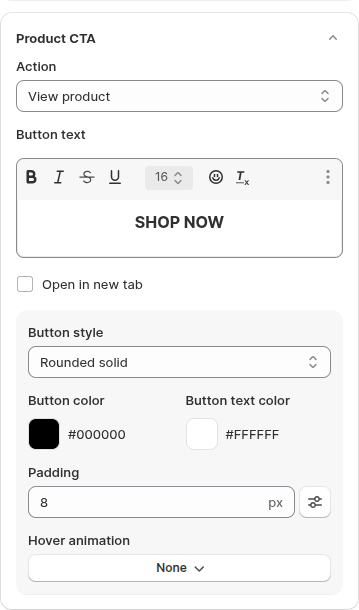
✔ **Product CTA:** Choose what happens when customers click a product.

<figure><img src="https://1289081335-files.gitbook.io/~/files/v0/b/gitbook-x-prod.appspot.com/o/spaces%2FAmqp7RxqJNuSEGCBn5Og%2Fuploads%2Fgit-blob-bca0f2df7d0fb6a580142248ee074c737dec8fc4%2Ffree-shipping-banner-recommended-products-04-product-cta.png?alt=media" alt="Product CTA settings: Action, Button text, Open in new tab and Button style"><figcaption></figcaption></figure>

* **None** → Products are displayed only. Nothing happens on click.
* **View product** → Shows a button (default *"SHOP NOW"*) that opens the product page.
* **Add to cart** → Shows a button (default *"ADD TO CART"*) that adds 1 item to the cart and takes customers to the cart page.
* **Card clickable** → The whole product card opens the product page.

For **View product** and **Card clickable**, tick **Open in new tab** to open the product page in a new browser tab. For **View product** and **Add to cart**, you can edit the **Button text** and the button style (style, colors, padding, hover animation).

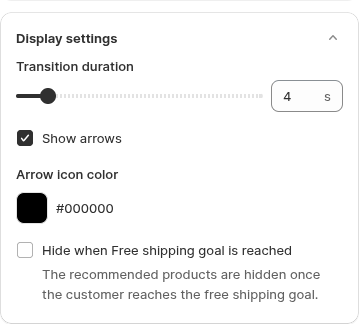
✔ **Display settings:**

<figure><img src="https://1289081335-files.gitbook.io/~/files/v0/b/gitbook-x-prod.appspot.com/o/spaces%2FAmqp7RxqJNuSEGCBn5Og%2Fuploads%2Fgit-blob-9c1bc297e651beb2eb9f355f7b6cfec8037a69d3%2Ffree-shipping-banner-recommended-products-05-display-settings.png?alt=media" alt="Display settings: Transition duration, Show arrows and Hide when Free shipping goal is reached"><figcaption></figcaption></figure>

* **Transition duration** → How long each product stays on screen before the next one slides in (1–30 seconds, default 4 seconds).
* **Show arrows** → Lets customers switch between products manually. Set the **Arrow icon color**.
* **Hide when Free shipping goal is reached** → Hides the products once the cart reaches the free shipping goal, so only the success message is shown.

📌 **Tip**: Pick products priced close to the amount customers usually still need — a small add-on is often all it takes to unlock free shipping.

***

#### 💡 Tips: Use banner to offer free shipping, discounts, or gifts

Because the banner automatically detects the **cart value**, you can use it not only for free shipping but also to **promote special offers** — like giving a **free gift** or applying a **discount** when the cart reaches a certain amount.

***

**🎁 Example: Offer a free gift when customers spend $500**

**Step 1:** Set up the gift rule in your **Shopify admin**

* Create a rule that automatically adds a free gift (e.g., a shirt) when the cart total is over $500.

**Step 2:** In our app, configure the banner as follows:

* **Free shipping goal** = `500`
* **Start message:** `🎁 Free shirt for orders over $500`
* **Progress message:** `😍 Spend {{currency_symbol}}{{remaining_amount}} more to get a free shirt`
* **Goal reached message:** `✅ Congratulations! You got a free shirt!`

***

📌 **Pro Tip**: Showing the progress toward a reward right in the cart is a powerful way to boost average order value.

📚 **Related article**: [How to place the banner in a specific position](/faq-and-support/frequently-asked/how-to-use-a-custom-position-for-a-banner.md)

***

💬 If you have any related questions, please contact us via **Live chat** or [**support@tech-arms.io**](mailto:support@tech-arms.io) for further assistance.