> For the complete documentation index, see [llms.txt](https://banner-docs.tech-arms.io/llms.txt). Markdown versions of documentation pages are available by appending `.md` to page URLs; this page is available as [Markdown](https://banner-docs.tech-arms.io/getting-started/how-to-create-a-window-popup/email-signup-popup.md).
# Email signup Window popup
## **What is an** Email Signup **Popup?**
An Email Signup Popup is a small window that appears on your site to collect visitors’ email addresses—usually in exchange for a discount or offer. It's a simple way to grow your mailing list and boost conversions.
Email signup popup
To get started:\
**Go to** `Create Window popup` → **Select** `Email Signup Popup`.
***
> 👉 **First time creating a popup?**\
> Follow this quick [step-by-step guide](/getting-started/how-to-create-a-window-popup.md) to learn how to create and publish your first popup.
***
## Set Up Popup Components
### **1. Signup Step**
This is where you build your form and collect subscriber data such as name and email.
**🔧 How to set it up:**
**1.1. Add fields to your form**
* Click **“Add field”** to include extra fields like:
* First name
* Last name
* Email consent (for GDPR compliance)
* Footer
* Close action
* Countdown timer
**1.2. Customize Email Field & Button**
* You can edit placeholder text, field styles, and the subscribe button.
**1.3. Style your form**
* Background: Set a background color for the input container.
* Font text: Choose text color.
* Border: Set border color and adjust **border radius** to round the input corners.
* Use consistent styling to match your store’s branding.
***
### **2.Success Message**
After users submit their email, show them a confirmation message with a discount or offer.
**🔧 How to set it up:**
**2.1. Edit content**
* Update the **text** and **subtext** to thank the user and explain the reward.
* Add a **Copyable Coupon** field so they can easily grab the discount code.
**2.2. Customize the coupon display**
* Border style: Choose from styles like **rounded dashed**.
* Background color: Set background for the coupon field.
* Coupon text color: Adjust font color of the code.
* Font size: Use the slider to adjust text size.
* Full width: Enable if you want the coupon field to stretch across the popup.
**2.3. Add a CTA button**
* Include a “Continue shopping” or “Shop now” button with a link back to your site.
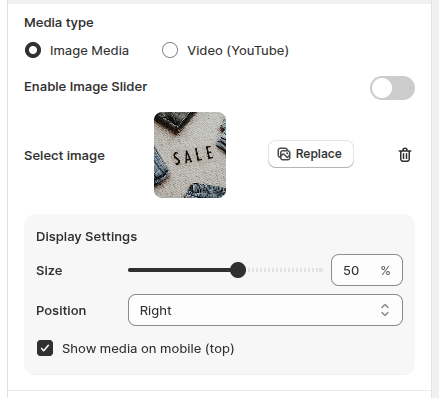
### **3. Visual Media**
Add an image, an image slider or a YouTube video to your popup.
* **Media type** → **Image Media** or **Video (YouTube)**.
* **Enable Image Slider** → Show up to 5 images that slide one after another.
* **Display Settings** → Set the media **Size**, **Position** and whether to **Show media on mobile (top)**.
[→ See full guide](/getting-started/how-to-create-a-window-popup.md#visual-media)
### **4. Popup Background**
You can customize the background of your popup using one of the following styles:
***
**4.1. Solid Fill**
* A single, solid color applied as the popup background.
* Ideal for a **clean, minimal design** or when you want text and buttons to stand out clearly.
***
**4.2. Gradient**
* A smooth blend between two or more colors.
* Great for adding a **modern, eye-catching look** to your popup without using an image.
***
**4.3. Image Fill**
* Allows you to **upload a custom image** as the popup background.
* After uploading, choose how the image should appear within the popup:
* **Tile image:** The image will be displayed at its **real/original size**, and if it's smaller than the container, it will **repeat (tile)** both vertically and horizontally until the background is fully filled.\
→ Useful for creating **pattern-style backgrounds** or decorative effects.
* **Fit image**: Automatically resizes the image to fit the container while maintaining aspect ratio. Recommended if your image contains important content (like text or product visuals) that should be fully visible.
> Tip: Use high-resolution images for best display quality across all screen sizes.
### **5. Popup Teaser**
For email signup campaigns, enabling a teaser can significantly increase your chances of capturing leads. It allows visitors to **reopen the popup after closing** or **choose to open it manually** without interrupting their browsing experience.
This is especially helpful for:
* Encouraging users to subscribe without being intrusive
* Giving visitors more than one chance to sign up
* Making sure your offer (e.g., discount for signing up) isn’t missed
.png?alt=media)
***
#### **Teaser Display Types**
First, choose when the teaser should appear. There are **three display options** based on how and when you want the teaser to show:
1. Show after popup is closed
* **Behavior**:\
Once the popup is closed, it will shrink into a small teaser label displayed in a corner of the screen. Users can click the teaser to reopen the popup at any time.
* **When to use**:\
Use this option for **important messages**, **limited-time offers**, or any content that users might want to **revisit**. It's also useful when you want to **maintain engagement** after the initial popup is dismissed.
2. Show before displaying popup
* **Behavior**:\
The teaser appears **before the popup is triggered** (e.g., by scroll, timer, etc.). If users click on the teaser, the popup opens immediately. Once the popup is closed, the teaser **will not reappear**.
* **When to use**:\
Best for a **non-intrusive user experience**, where users can choose when to interact. Ideal on pages where you **don’t want to interrupt** the main flow (like product or cart pages), or for **returning visitors** who may have already seen the popup before.
3. Show before displaying and after closed
* **Description**: The teaser is displayed **both before the popup is triggered and after it’s closed**, giving users the ability to **access the popup at any time**.
* **When to use**:
* For **long-running campaigns** or high-value messages like newsletter signups, exclusive discounts, or any popup where you want to **maximize visibility**.
* Ideal when you want to ensure the popup **won’t be missed**, even if the user ignores the initial trigger or closes it by accident.
***
#### **Teaser Layout**
Next, choose the layout that best fits your teaser content.
* Select either **Text & Container** or **Visual Image**, then adjust the available customization settings as needed.
* Refer to the instructions below for details.
Text & Container Teaser
**Text & Container Teaser** is **a text-based teaser** that offers flexible customization options. You can edit the content and style by:
* **Editing content & style**: Customize the teaser’s text, color, and appearance to match your brand.
* **Close button**: Choose whether to show or hide the teaser’s close button.
* **Device targeting & position:**
* Control where and how the teaser appears by **enabling it on desktop, mobile, or both**,
* & selecting its **screen position** *(e.g., bottom-left, bottom-right, etc.).*
* **Animation:** Apply **one animation effect**—Pulse, Swing, or Tada—to draw attention.
Visual Image Teaser
**Visual Image Teaser** is **an image-based teaser** designed to create stronger visual impact. Follow these steps to set it up:
* **Select an image:** Click **Change Image** to choose one from the library or upload your own.
* **Image Size**:
* The image size can be adjusted between **100px and 300px.**
* (Note: Image shape is flexible as long as it fits within this size range).
* **Close Button:**
* **Tick the checkbox** to choose whether to show or hide the close (X) button.
* If you want to **customize its position**, click **Custom Close Position**, then drag and drop the close button within the modal to place it where you prefer on the image.
* **Device targeting & position:**
* Control where and how the teaser appears by **enabling it on desktop, mobile, or both,**
* & **selecting its screen position** *(e.g., bottom-left, bottom-right, etc.).*
* **Animation:** Apply **one animation effect**—Pulse, Swing, or Tada—to draw attention.
**Related articles:**
{% content-ref url="/pages/o3pSs8Ad62rr7LLAgI1x" %}
[How to send discount codes to customers after signing up](/faq-and-support/frequently-asked/how-to-send-discount-codes-to-customers-after-signing-up.md)
{% endcontent-ref %}
{% content-ref url="/pages/AAEaWGJQPU00oUFtYLeW" %}
[Email Subscriber sync](/getting-started/campaign-settings/email-subscriber-sync.md)
{% endcontent-ref %}
{% content-ref url="/pages/5ONjORBgnGQEROc7xXUH" %}
[How to manage subscribers?](/faq-and-support/frequently-asked/how-to-manage-subscribers.md)
{% endcontent-ref %}
***
💬 If you have any related questions, please contact us via **Live chat** or [**support@tech-arms.io**](mailto:support@tech-arms.io) for further assistance.
.png?alt=media)
.png?alt=media)
.png?alt=media)
.png?alt=media)
.png?alt=media)
.png?alt=media)
.png?alt=media)
.png?alt=media)
.png?alt=media)
.png?alt=media)
%20(1).png?alt=media)
%20(1).png?alt=media)
.png?alt=media)
.png?alt=media)
.png?alt=media)
.png?alt=media)
.png?alt=media)